
Are you looking for the best way to capture your screen? Learning How to Screen Record on Chromebook is much easier than you might think. You do not need fancy software or expensive tools to get started today. Whether you want to make a fun video for friends or show a coworker how to use an app, ChromeOS has a built-in tool that is perfect for you. This guide will show you everything you need to know, from simple clips to more advanced setups. Let’s dive into the steps to get you recording in no time!
Quick Reference Table
| Feature | Is it Built-in? | Best For |
| Screen Capture Tool | Yes | Basic screen recordings |
| Internal Audio | Yes | Capturing game or app sounds |
| External Mic | Yes | Adding your own voice |
| Facecam | No | Requires extra web apps |
Why Use the Built-in Screen Recorder?
Learning how to screen record on Chromebook is great because you do not need to install anything. The tool is already inside your computer. It is safe, fast, and works perfectly with your system. Most users find that they do not need extra software at all. By using the built-in tool, you save space on your hard drive. You also avoid worrying about ads or paid subscriptions. It is the best way for beginners to start making videos right away on their laptops.


How to Open the Screen Capture Menu
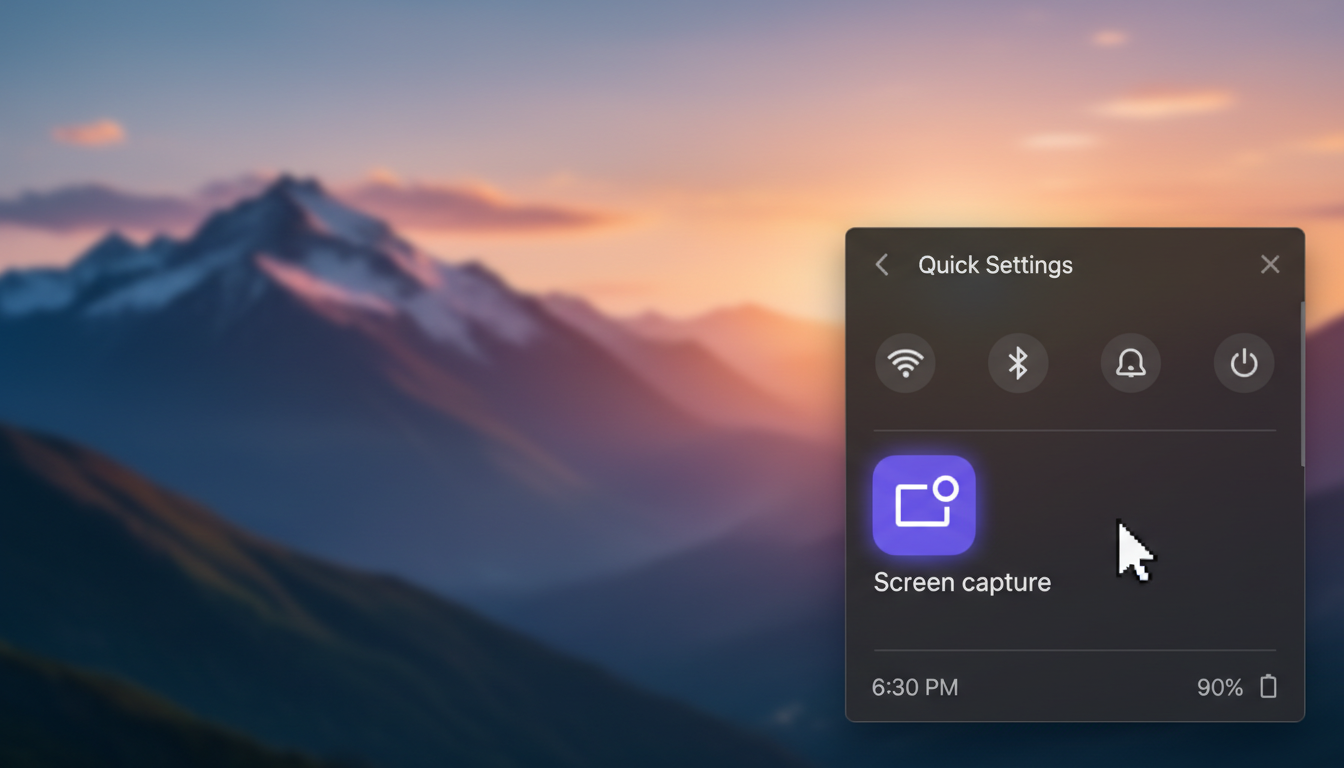
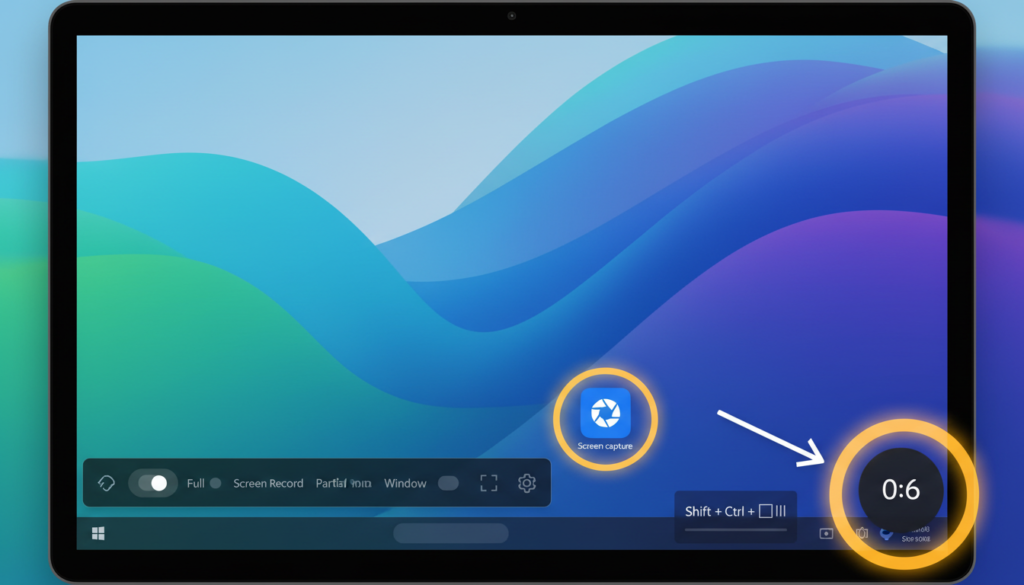
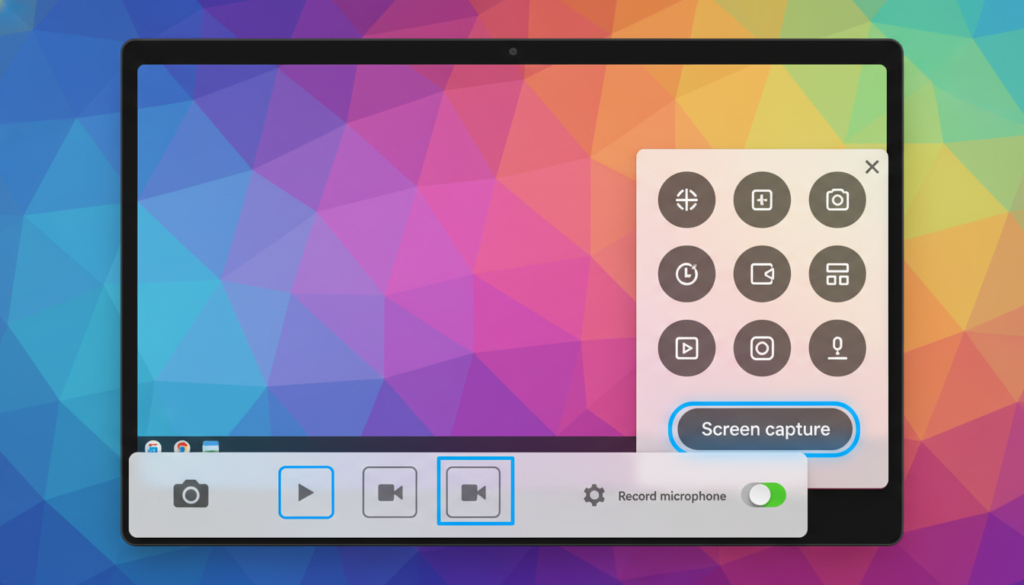
To start, you need to open the menu. Press the Shift + Ctrl + Show Windows keys at the same time. You will see a small bar appear at the bottom of your screen. This is your control center. You can choose to record the whole screen, a small window, or just a part of the screen. Clicking the video camera icon tells the computer you want to make a movie instead of taking a picture. It is very simple to navigate once you try it once.
How to Screen Record on Chromebook with Audio
Many people ask how to screen record on Chromebook with audio. It is very simple to set up before you start. On the recording menu, look for the little gear icon or “Settings.” Make sure you select your microphone from the list. This lets you talk while you record your screen. If you forget this step, your video will be silent. Always check your settings to ensure your mic is turned on. This makes your videos much better for your viewers to enjoy.
How to Screen Record on Chromebook with Sound
If you want to know how to screen record on Chromebook with sound, keep reading. Sometimes you want the people watching to hear your voice. Other times, you want them to hear the computer. To get the best results, make sure your volume is turned up. Test your audio in a quick 5-second video first. This ensures that your voice and the computer sound are both loud and clear. Being prepared helps you avoid having to record your project a second time.
How to Screen Record on Chromebook with Internal Audio
Capturing how to screen record on Chromebook with internal audio is a new feature that helps a lot. This lets you record the sounds coming directly from your apps or games. You can turn this on in the same settings menu where you choose your microphone. This is perfect for recording gameplay or tutorials. It sounds much better than holding a microphone up to the speakers. Your audience will love the crisp, clean sound quality in your final video files.
Adding a Facecam for Better Videos
You might wonder how to screen record on Chromebook with facecam. The built-in tool does not do this directly. However, you can use web-based tools like Loom or Screencastify. These are very popular and work well on ChromeOS. They put a small circle on your screen that shows your face. This makes your video feel much more personal. Using a facecam is a smart way to connect with your audience. It turns a boring screen recording into an engaging, human experience.
Where Are My Recordings Saved?
After you finish, you might ask where your file went. By default, your Chromebook saves everything in the “Downloads” folder. You can find this by opening your “Files” app. From there, you can drag your video to Google Drive or share it with friends. It is important to rename your files so you can find them later. I like to add the date to my filenames. This keeps my computer organized and helps me track all my different projects easily.
Tips for Better Recording Quality
Good lighting is important if you use a camera. Make sure the light is in front of you, not behind. Also, try to be in a quiet room. Loud fans or noisy pets can distract your viewers. If you are learning how to screen record on Chromebook, try to keep your desktop clean. Hide your private files so they do not show up in your video. A clean, organized desktop looks much more professional to anyone who watches your recording later.
Editing Your Recorded Videos
Once you finish, you might want to trim the edges. You can use the built-in Gallery app on your Chromebook for this. It allows you to cut the start or end of your video. This is useful if you took too long to hit the stop button. You do not need a master’s degree in editing to do this. Just open the video, click the edit icon, and pull the sliders. It is a quick way to polish your work and look like a pro.
Troubleshooting Common Issues
Sometimes things do not go as planned. If your video has no sound, check your microphone settings again. If the screen looks blurry, check your internet or the app settings. Sometimes a simple restart of the Chromebook fixes everything. Do not get frustrated if it takes a few tries. Even the best creators have to fix mistakes sometimes. Just take a deep breath and look at your settings. You will be a pro at this in no time at all.
Frequently Asked Questions
Is it free to record my screen on a Chromebook?
Yes! The built-in screen capture tool is completely free to use. You do not need to buy anything or sign up for services to use the basic features.
Where can I find my screen recordings?
Your finished videos are automatically saved in the “Downloads” folder. You can find this by opening the “Files” app on your computer.
Can I record just one specific app?
Yes, you can choose to record just a single window. This is great if you want to keep other parts of your desktop private while you record.
Will the computer slow down while recording?
Chromebooks are usually very fast. However, if you have too many tabs open, it might lag. Close extra tabs before you start recording to keep it smooth.
How do I share my video with others?
You can upload the file to Google Drive or YouTube. Then, just send the link to your friends or coworkers so they can watch it.
Can I record for a long time?
The built-in tool can record for a long time, but remember that video files take up space. Make sure you have enough storage on your Chromebook first.
Conclusion
Now you know how to screen record on Chromebook like an expert! It is a simple skill that helps you share ideas and teach others. Whether you are using internal audio or adding your own voice, you are ready to create great content. Remember to practice a few times to get comfortable with the buttons. Do you have a project you are planning to record today? Go ahead and start your first video! If you have any more questions, feel free to ask. Happy recording!